Creating Linear Webhooks
Webhooks enable Integration Hub to receive real-time updates from Linear when issues are created, updated, or have comments added. You must create one webhook per Linear team you want to monitor.
Why Webhooks Per Team?
Linear organizes work into teams, and webhooks are created at the team level. This design provides several benefits:
- Targeted Monitoring - Only receive updates from teams you care about
- Reduced Noise - Avoid processing irrelevant updates from other teams
- Organized Configuration - Each team can have different rules and routing
- Better Performance - Integration Hub processes only relevant updates
- Flexible Scaling - Add or remove teams independently
Before You Create Webhooks
- ✓ PagerDuty account connected
- ✓ Linear workspace connected
- ✓ Access to the Linear teams you want to monitor
- ✓ Identified which teams should create PagerDuty incidents
Creating a Webhook
Step 1: Navigate to Webhooks
- Log in to Integration Hub
- Navigate to the Webhooks tab in the main navigation
- Click the Create Webhook button

Screenshot: Empty webhooks list
Step 2: Select a Team
- In the webhook creation dialog, you'll see a dropdown of available teams
- Select the Linear team you want to monitor
- The team name will be used as the webhook name

Screenshot: Team selection in create webhook dialog
Step 3: Create the Webhook
- Review the selected team name
- Click Create to create the webhook
- Integration Hub will:
- Register the webhook with Linear's API
- Configure it to listen for issue and comment events
- Store the webhook configuration
- You'll see a success message and the webhook will appear in your webhooks list

Screenshot: Webhook created successfully
Understanding Webhook Information
Once created, each webhook displays the following information:
| Field | Description |
|---|---|
| Team Name | The Linear team this webhook monitors |
| Status | Active (receiving updates) or Inactive |
| Created Date | When the webhook was created |
| Rules Count | Number of rules using this webhook |
What Events Does the Webhook Monitor?
Each webhook is automatically configured to monitor the following Linear events for its team:
Issue Events
- Issue Created - When a new issue is created in the team
- Issue Updated - When an issue's priority, status, or other fields change
- Issue Status Changed - When an issue moves to a different status (Triage, In Progress, Done, etc.)
- Issue Priority Changed - When an issue's priority is updated
Comment Events
- Comment Created - When a comment is added to an issue (currently used for bidirectional sync, not for triggering incidents)
Creating Multiple Webhooks
To monitor multiple teams, repeat the webhook creation process for each team:
- Click Create Webhook
- Select a different team
- Click Create
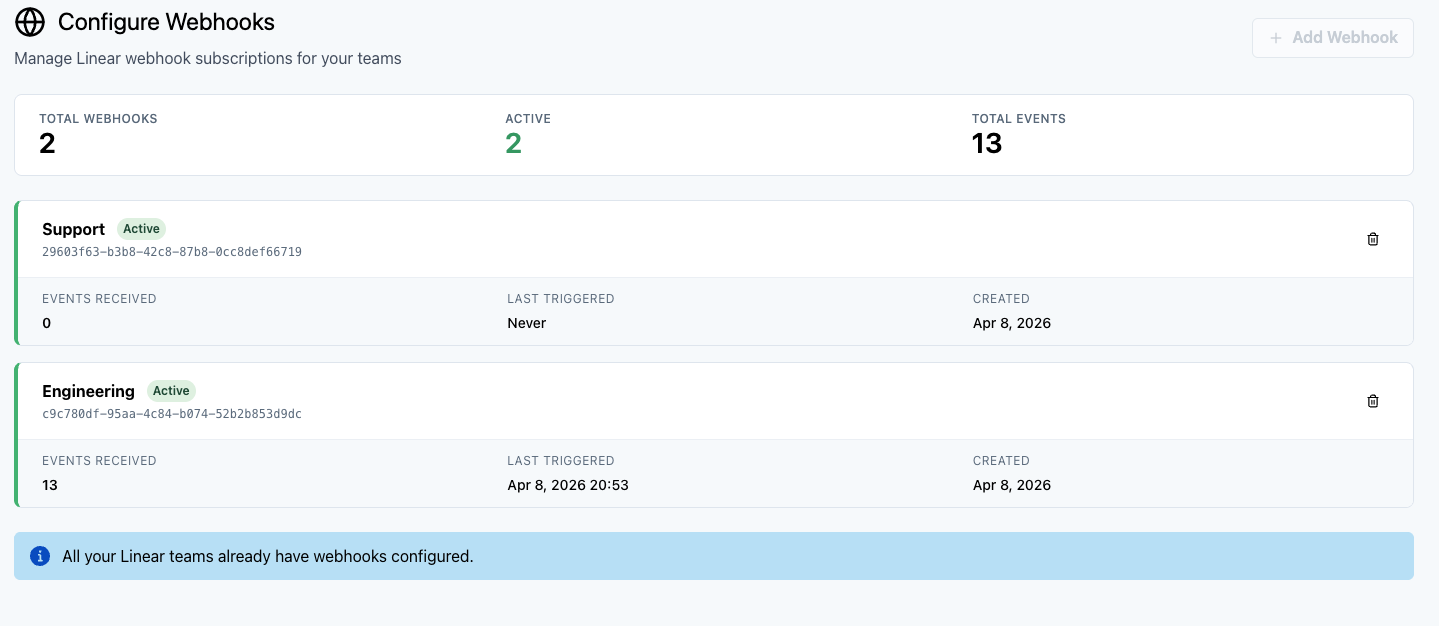
Screenshot: Multiple webhooks for different teams
Managing Webhooks
Viewing Webhook Details
Click on any webhook in the list to view:
- Webhook configuration details
- List of rules using this webhook
- Recent activity and events received
- Webhook status and health
Editing Webhooks
Webhooks are tied to specific Linear teams and cannot be edited to change the team. If you need to monitor a different team, create a new webhook and delete the old one.
Deleting Webhooks
- Stop all event updates from that Linear team
- Disable any rules using this webhook
- Remove the webhook from Linear's configuration
To delete a webhook:
- Find the webhook in your webhooks list
- Click the Delete button (trash icon)
- Confirm the deletion in the dialog
Webhook Security
Integration Hub webhooks are secured using:
- Signed Requests - Linear signs each webhook request with a secret key
- Request Verification - Integration Hub verifies the signature before processing
- HTTPS Only - All webhook traffic is encrypted in transit
- OAuth Tokens - API calls back to Linear use your secure OAuth token
Troubleshooting Webhooks
Webhook Shows as Inactive
Problem: Webhook status shows as "Inactive" or not receiving updates
Solution:
- Check that your Linear connection is still active
- Verify the webhook still exists in Linear (Settings → Webhooks in Linear)
- Try deleting and recreating the webhook
- Check Linear team permissions (you may have lost access)
Team Not in Dropdown
Problem: A Linear team doesn't appear when creating a webhook
Solution:
- Verify your Linear account has access to that team
- Ask a workspace admin to grant you team access
- Disconnect and reconnect your Linear account to refresh team list
- Refresh the page to reload available teams
Webhook Creation Failed
Problem: Webhook creation fails with an error
Solution:
- Check that you haven't already created a webhook for this team
- Verify your Linear connection is active
- Ensure you have permission to create webhooks in Linear
- Check for any Linear API rate limits or service issues
Updates Not Being Received
Problem: Webhook exists but issue updates aren't triggering rules
Solution:
- Verify you have rules configured for this webhook
- Check that your rule criteria match the issue properties (priority, status, etc.)
- Test by creating an issue in Linear that should match your rules
- Check the webhook activity log for received events
Best Practices
Start with One Team
When setting up Integration Hub for the first time, create a webhook for just one team and test thoroughly before adding more teams.
Name Your Teams Clearly
Use descriptive team names in Linear so it's easy to identify which webhook corresponds to which team.
Monitor Webhook Health
Periodically check your webhooks list to ensure all webhooks show as "Active" and are receiving updates.
Clean Up Unused Webhooks
If you're no longer using a team integration, delete the webhook to reduce unnecessary event processing.
Next Steps
Now that you've created webhooks for your Linear teams, you're ready to configure rules:
Quick Reference
Webhook Checklist:
- ✓ One webhook per Linear team
- ✓ Webhooks automatically monitor issue and comment events
- ✓ Webhook status should show as "Active"
- ✓ Create rules after creating webhooks
- ✓ Delete webhook if no longer monitoring that team