Configuring Rules
Rules define exactly when Integration Hub should create PagerDuty incidents from Linear issues. Each rule combines filtering criteria with PagerDuty routing and bidirectional sync configuration.
Before You Create Rules
- ✓ PagerDuty account connected
- ✓ Linear workspace connected
- ✓ At least one webhook created for a Linear team
- ✓ Identified which PagerDuty service should receive incidents
Understanding Rules
A rule consists of three main components:
- Filtering Criteria - Which Linear issues should trigger incidents
- PagerDuty Routing - Where incidents should be created and with what urgency
- Bidirectional Sync - How status changes should sync between systems
Creating a Rule
Step 1: Navigate to Rules
- Log in to Integration Hub
- Navigate to the Rules tab in the main navigation
- Click the Create Rule button

Screenshot: Empty rules list
Step 2: Select Webhook
Choose which Linear team (webhook) this rule applies to. The rule will only evaluate issues from the selected team.

Screenshot: Selecting webhook for rule
Step 3: Configure Filtering Criteria
Define which issues from the selected team should create PagerDuty incidents. You can filter by:
Priority
Select one or more Linear priorities that should trigger incidents:
- Urgent - Critical, time-sensitive issues
- High - Important issues requiring prompt attention
- Medium - Standard priority issues
- Low - Minor issues or enhancements
- No Priority - Issues without a set priority
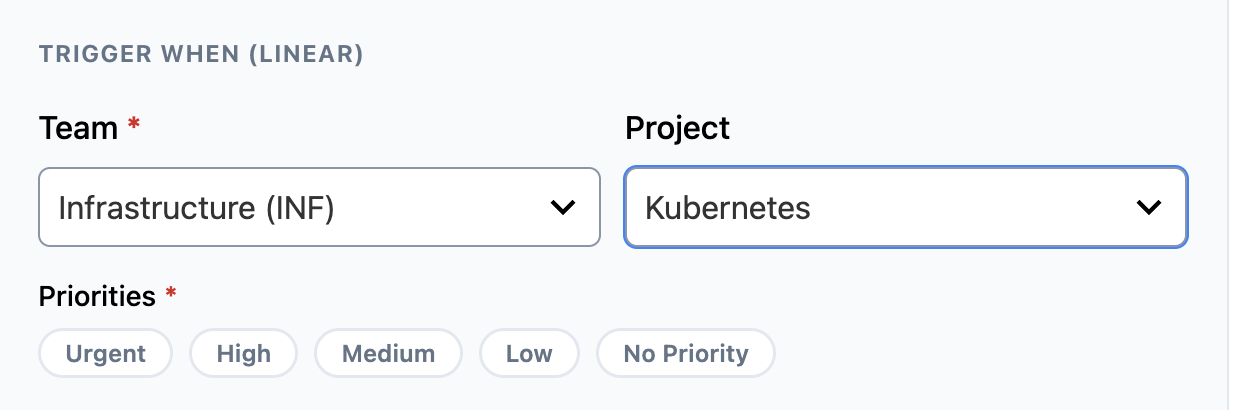
Screenshot: Selecting priorities
Status Types
Select which Linear workflow states should trigger incidents. Linear groups statuses into types:
- Triage - Newly created, needs assessment
- Backlog - Prioritized but not started
- Unstarted - Ready to work on (e.g., "Todo")
- Started - In progress
- Completed - Done, resolved
- Canceled - Closed without completion
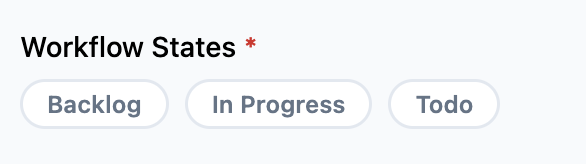
Screenshot: Selecting status types
Projects
Filter by specific Linear projects within the team. This allows you to:
- Monitor only production-related projects
- Create separate rules for different project types
- Route project-specific issues to appropriate PagerDuty services
- Exclude internal or non-critical projects
Project Selection:
- Leave empty to monitor all projects in the team
- Select specific projects to monitor only those projects
- Projects are loaded from your connected Linear workspace
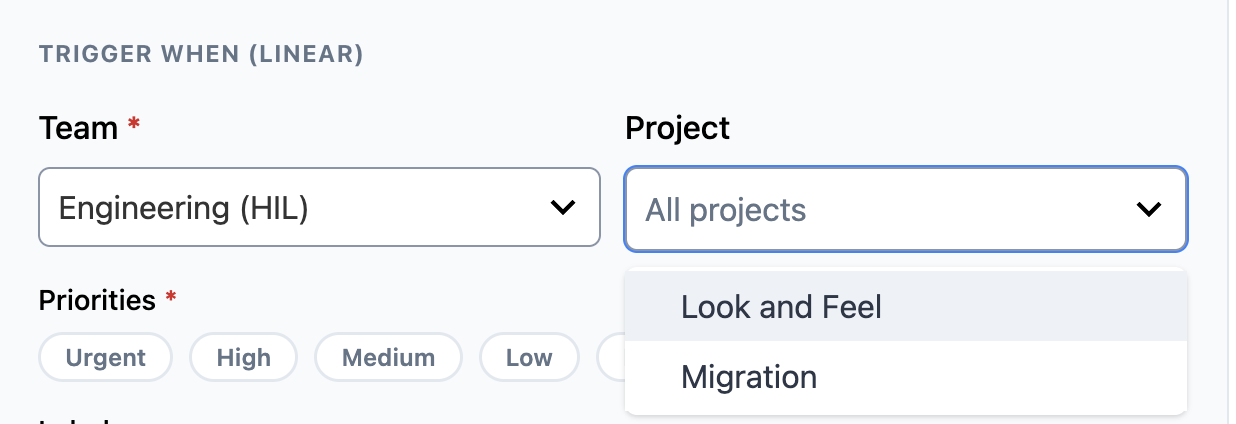
Screenshot: Selecting specific projects
Labels
Filter by Linear labels for even more precise control. Labels are custom tags you can add to issues in Linear:
- Severity Labels - "Critical," "High Impact," "Low Impact"
- Environment Labels - "Production," "Staging," "Development"
- Type Labels - "Bug," "Incident," "Outage," "Security"
- Custom Labels - Any labels specific to your workflow
Label Match Modes:
Choose how labels should be evaluated when determining if an issue matches the rule:
| Mode | Behavior | Use Case |
|---|---|---|
| None | Ignores labels entirely. Incident created regardless of labels on the issue. | Use when labels aren't relevant to your incident criteria. |
| Any | Incident created if the Linear issue has at least one of the selected labels. | Use for broad matching (e.g., trigger on "Bug" OR "Critical" OR "Production"). |
| All | Incident created only if the Linear issue has all of the selected labels. | Use for strict matching (e.g., require both "Production" AND "Customer-Facing"). |
Label Selection Examples:
- None mode: Select "None" to ignore labels completely. Incident is created for matching issues regardless of what labels (if any) they have.
- Any mode: Select "Any" and choose labels like ["Bug", "Security"]. Incident is created if the issue has "Bug" OR "Security" (or both).
- All mode: Select "All" and choose labels like ["Production", "Customer-Facing"]. Incident is created ONLY if the issue has BOTH "Production" AND "Customer-Facing" labels.
Complete Example Rule:
- Team: Backend Team
- Priority: Urgent
- Status: Triage, Started
- Label Match Mode: All
- Labels: ["Production", "Customer-Facing"]
Result: Creates incident ONLY for Urgent backend issues in Triage or Started status that have BOTH "Production" AND "Customer-Facing" labels.
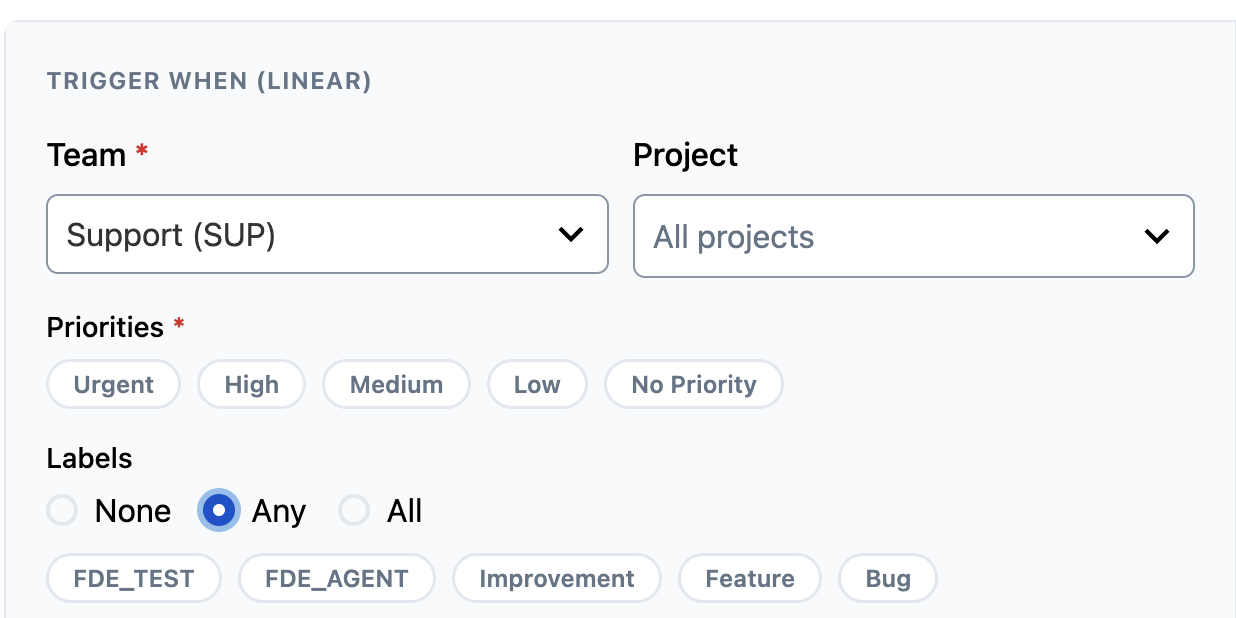
Screenshot: Selecting labels and match mode for filtering
Step 4: Configure PagerDuty Routing
Select PagerDuty Service
Choose which PagerDuty service should receive incidents from matching Linear issues. The dropdown shows all services from your connected PagerDuty account.
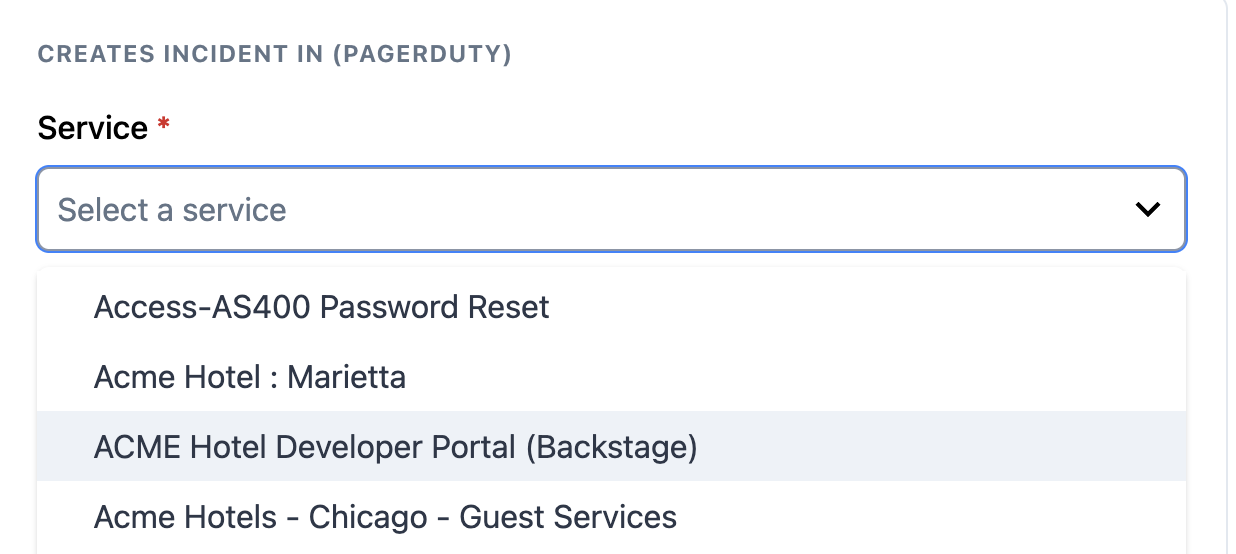
Screenshot: Selecting PagerDuty service
Set Incident Urgency
Choose the urgency level for created incidents:
- High - Triggers high-urgency alerts and notification rules
- Low - Creates low-urgency incidents with standard notification rules
Step 5: Configure Bidirectional Sync
Define how PagerDuty incident status changes should update Linear issues:
Acknowledged Status
When you acknowledge an incident in PagerDuty, the corresponding Linear issue will move to this status.
- Select a Linear workflow status (e.g., "In Progress," "In Review")
- Only statuses from the selected webhook's team are available
- This helps your team know when someone is actively working on an issue
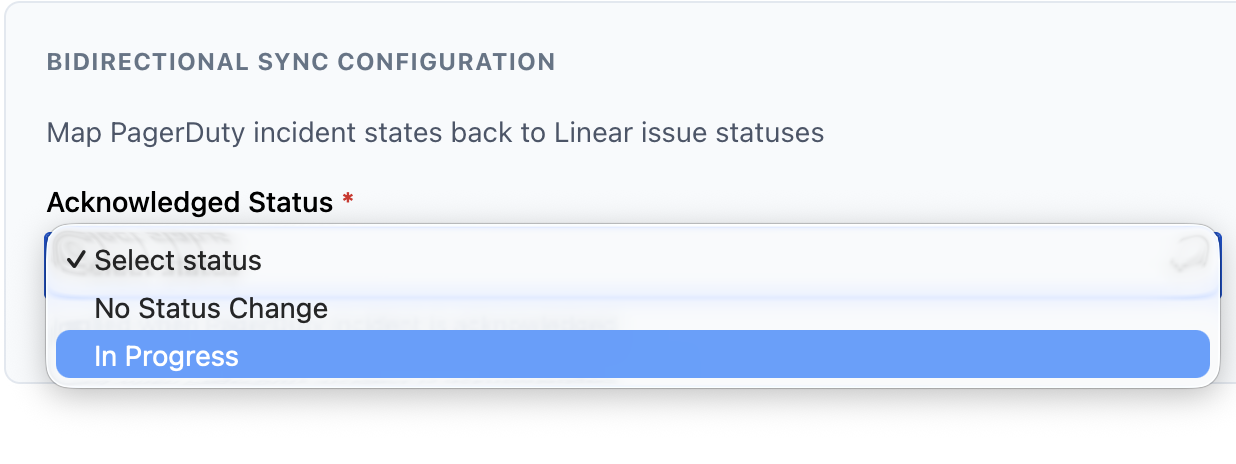
Screenshot: Selecting acknowledged status mapping
Resolved Status
When you resolve an incident in PagerDuty, the corresponding Linear issue will move to this status.
- Select a Linear workflow status (e.g., "Done," "Resolved," "Completed")
- Typically this should be a terminal/completed status type
- Keeps Linear in sync when issues are fixed
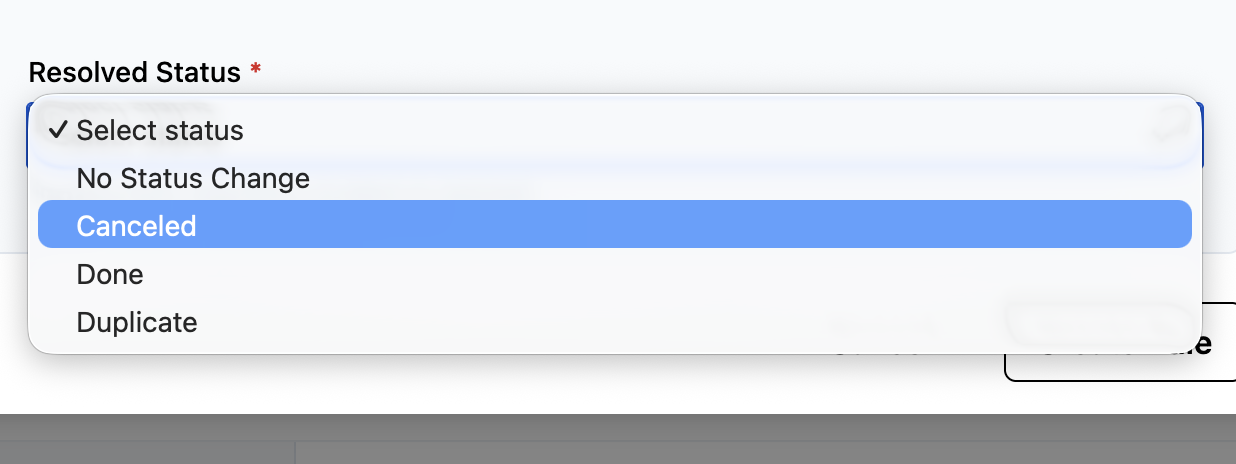
Screenshot: Selecting resolved status mapping
Step 6: Save the Rule
- Review all your selections
- Click Save Rule
- Integration Hub will:
- Create the rule configuration
- Create a PagerDuty webhook for the selected service (if not already created)
- Begin monitoring for matching Linear issues
- You'll see a success message and the rule will appear in your rules list

Screenshot: Rule created successfully
Understanding Rule Logic
Rules use AND logic across filter types and OR logic within each filter type (except labels, which depend on the Label Match Mode):
Example Rule (Label Match Mode: Any):
- Priorities: Urgent, High
- Status Types: Triage, Started
- Projects: "Production Issues"
- Label Match Mode: Any
- Labels: "Bug", "Incident"
This matches:
Issues with (Urgent OR High priority) AND (Triage OR Started status) AND ("Production Issues" project) AND ("Bug" OR "Incident" label)
Example Rule (Label Match Mode: All):
- Priorities: Urgent
- Status Types: Triage
- Projects: "Production Issues"
- Label Match Mode: All
- Labels: "Production", "Customer-Facing", "Security"
This matches:
Issues with (Urgent priority) AND (Triage status) AND ("Production Issues" project) AND ("Production" AND "Customer-Facing" AND "Security" labels—all three required)
Example Rule (Label Match Mode: None):
- Priorities: High, Urgent
- Status Types: Started
- Projects: (all projects)
- Label Match Mode: None
- Labels: (none selected)
This matches:
Issues with (High OR Urgent priority) AND (Started status) AND (any project). Labels are completely ignored—incident created regardless of what labels the issue has.
Managing Rules
Viewing Rules
The rules list displays:
- Webhook/team name
- PagerDuty service
- Filter criteria summary
- Bidirectional sync status mappings
- Enabled/disabled status
Editing Rules
- Click on a rule in the rules list
- Update any configuration settings
- Click Save to apply changes
Disabling Rules
To temporarily stop a rule without deleting it:
- Toggle the Enabled switch to off
- The rule will stop creating incidents but remain configured
- Re-enable anytime by toggling the switch back on
Deleting Rules
- Find the rule in your rules list
- Click the Delete button (trash icon)
- Confirm the deletion
Rule Examples
Example 1: Critical Production Issues
Name: "Critical Production Bugs"
Webhook: Engineering Team
Priorities: Urgent
Status Types: Triage, Started
Projects: "Production Issues"
Label Match Mode: Any
Labels: "Bug", "Outage"
PagerDuty Service: Production On-Call
Urgency: High
Acknowledged Status: In Progress
Resolved Status: Done
Use Case: Page on-call engineers immediately for urgent production bugs and outages. Uses "Any" mode to trigger on either "Bug" OR "Outage" labels.
Example 2: High-Priority Customer Issues
Name: "Customer-Impacting Production Issues"
Webhook: Support Team
Priorities: High, Urgent
Status Types: Triage, Unstarted, Started
Projects: (all projects)
Label Match Mode: All
Labels: "Production", "Customer-Facing"
PagerDuty Service: Customer Support Escalation
Urgency: High
Acknowledged Status: In Review
Resolved Status: Resolved
Use Case: Ensure high-severity customer-impacting issues in production get immediate attention. Uses "All" mode to require BOTH "Production" AND "Customer-Facing" labels—preventing false positives from non-production customer issues.
Example 3: Security Incidents
Name: "Security Issues"
Webhook: Security Team
Priorities: Urgent, High
Status Types: Triage
Projects: (all projects)
Label Match Mode: Any
Labels: "Security", "Vulnerability", "Data-Breach"
PagerDuty Service: Security On-Call
Urgency: High
Acknowledged Status: Investigating
Resolved Status: Remediated
Use Case: Route security issues to security team immediately when reported. Uses "Any" mode to trigger on ANY security-related label.
Example 4: All High-Priority Issues (Labels Ignored)
Name: "All High Priority Work"
Webhook: Engineering Team
Priorities: High, Urgent
Status Types: Triage, Unstarted, Started
Projects: (all projects)
Label Match Mode: None
Labels: (none)
PagerDuty Service: Engineering On-Call
Urgency: Low
Acknowledged Status: In Progress
Resolved Status: Done
Use Case: Monitor all high-priority work regardless of labels. Uses "None" mode to ignore labels entirely—incident created for any high/urgent issue in active states.
Best Practices
Start Simple
Create one rule initially with narrow criteria (e.g., only Urgent priority). Test thoroughly before adding more complex rules.
Use Descriptive Names
Name your rules clearly so you can identify them at a glance (e.g., "Critical Production Issues" instead of "Rule 1").
Avoid Overlapping Rules
Be careful not to create multiple rules with overlapping criteria, as this could create duplicate incidents for the same Linear issue.
Review and Refine
Periodically review your rules to ensure they're still relevant and adjust criteria based on your team's workflow changes.
Leverage Projects and Labels
Use projects and labels in Linear consistently to make rule filtering more effective and reduce false positives.
Test Your Rules
After creating a rule, test it by creating or updating a Linear issue that should match the criteria. Verify the incident is created in PagerDuty.
Troubleshooting
Incidents Not Being Created
Problem: Linear issues aren't creating PagerDuty incidents
Solution:
- Verify the rule is enabled
- Check that the Linear issue matches ALL filter criteria (priority, status, project, labels)
- Ensure the webhook for this team is active
- Verify PagerDuty and Linear connections are active
- Check the rule's webhook is receiving events from Linear
Duplicate Incidents
Problem: Multiple incidents created for the same Linear issue
Solution:
- Check for overlapping rules with similar criteria
- Disable or delete duplicate rules
- Use more specific filtering (projects, labels) to prevent overlaps
Bidirectional Sync Not Working
Problem: Linear issues aren't updating when PagerDuty incidents are acknowledged/resolved
Solution:
- Verify the PagerDuty webhook was created for the service (check PagerDuty service settings)
- Check that acknowledged/resolved status mappings are configured
- Ensure Linear connection is still active
- Verify you have permission to update issues in Linear
Next Steps
Now that you've configured rules, learn more about how the integration works:
Quick Reference
Rule Configuration Checklist:
- ✓ Select webhook (Linear team)
- ✓ Choose priorities to monitor
- ✓ Select status types (avoid Completed/Canceled)
- ✓ Filter by projects (optional)
- ✓ Choose label match mode (None / Any / All)
- ✓ Select labels if using Any or All mode (optional)
- ✓ Select PagerDuty service
- ✓ Set incident urgency
- ✓ Map acknowledged status
- ✓ Map resolved status
- ✓ Test the rule after creation