Connect Your PagerDuty Account
Integration Hub uses OAuth to securely connect to your PagerDuty account. This ensures your credentials remain secure and you maintain full control over access permissions.
Before You Begin
- Manager, Admin, or Global Admin role in PagerDuty
- Professional, Business, or Enterprise plan
- Ability to create and manage services
- OAuth app access
Connection Steps
Step 1: Navigate to Connections
- Log in to Integration Hub
- Navigate to the Connections tab in the main navigation
- Find the PagerDuty connection card
Screenshot: PagerDuty connection card
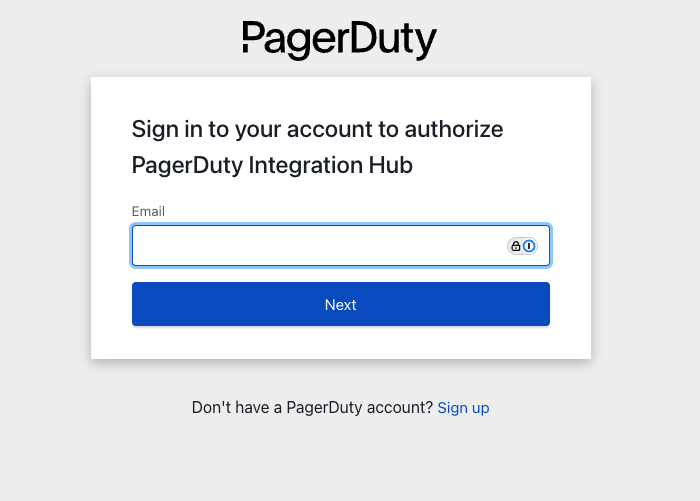
Step 2: Authorize with OAuth
- Click the Connect PagerDuty button
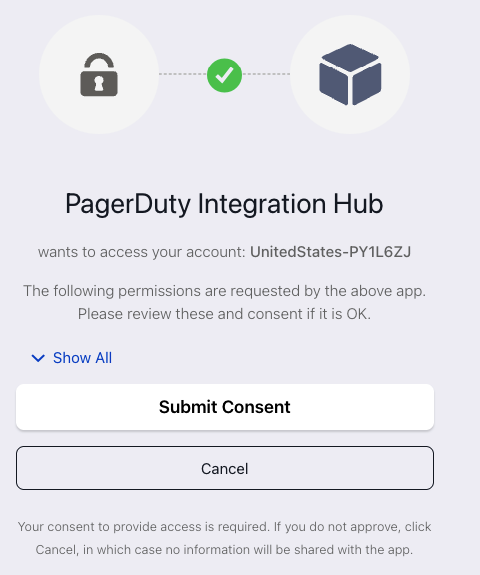
- You'll be redirected to PagerDuty's OAuth authorization page
- Review the requested permissions:
- Read and write services
- Read and write incidents
- Create and manage webhooks
- Read user information
- Click Authorize to grant access
Screenshot: OAuth authorization page
What Happens Next
Once connected, Integration Hub can:
- Read Your Services - View all services in your PagerDuty account to configure rules
- Create Incidents - Automatically create incidents when Linear issues match your rules
- Update Incidents - Sync status changes from Linear back to PagerDuty
- Add Notes - Sync comments from Linear to PagerDuty incidents
- Create Webhooks - Automatically create webhooks per service for bidirectional sync
Selecting Your PagerDuty Services
After connecting, Integration Hub will load your PagerDuty services. When creating rules, you'll be able to select which service should receive incidents from Linear issues.
Security and Permissions
OAuth Token Storage
Integration Hub stores your OAuth token securely and uses it only for authorized operations. The token is:
- Encrypted at rest
- Never exposed in logs or error messages
- Only used to perform actions you've configured
- Automatically refreshed when needed
Revoking Access
You can revoke Integration Hub's access at any time:
- From Integration Hub: Click the Disconnect button in the Connections tab
- From PagerDuty: Go to Settings → OAuth Applications and revoke access
Troubleshooting
Authorization Failed
Problem: OAuth authorization fails or times out
Solution:
- Verify you're logged into the correct PagerDuty account
- Check that you have Manager, Admin, or Global Admin role
- Clear browser cookies and try again
- Try a different browser or incognito mode
Connection Shows as Disconnected
Problem: Connection status changes to "Disconnected" after successful authorization
Solution:
- Check if the OAuth token was revoked in PagerDuty settings
- Verify your account still has the required permissions
- Reconnect by clicking the Connect PagerDuty button again
Services Not Loading
Problem: PagerDuty services don't appear when creating rules
Solution:
- Verify the connection status shows as "Connected"
- Check that you have at least one service in your PagerDuty account
- Refresh the page to reload services
- Disconnect and reconnect to refresh the OAuth token
Multiple PagerDuty Accounts
Integration Hub supports connecting to one PagerDuty account at a time. If you need to switch accounts:
- Click Disconnect to remove the current connection
- Click Connect PagerDuty again
- When prompted, log in to the different PagerDuty account
- Authorize the new account
Next Steps
Now that you've connected PagerDuty, continue with the setup:
Need Help?
If you're experiencing issues connecting your PagerDuty account: